
Maybe you’ve experienced an issue of a lagging load time with your Azure web app. You’re pretty happy with your app even though it may only receive occasional use. This occasional use can lead to your web entering a hibernation state. Opening your web app can take between 30-60 seconds. While that doesn’t sound like a long time, more than 5 seconds is a quick invitation for your user to quickly close the tab and move onto the next thing. I’m going to show you a quick solution to avoid this problem; creating a URL ping!
Start by logging into your Azure portal. An application insight resource is required: it gives really great feedback on your site; what kind of error requests are occurring; how many users have visited; what pages are most popular, amongst other benefits. It’s a very useful resource and I’d recommend adding one to any web apps you develop. If interested, more information can be found at https://docs.microsoft.com/en-us/azure/azure-monitor/app/app-insights-overview Alright, let’s save our web app from the grasps of the void!
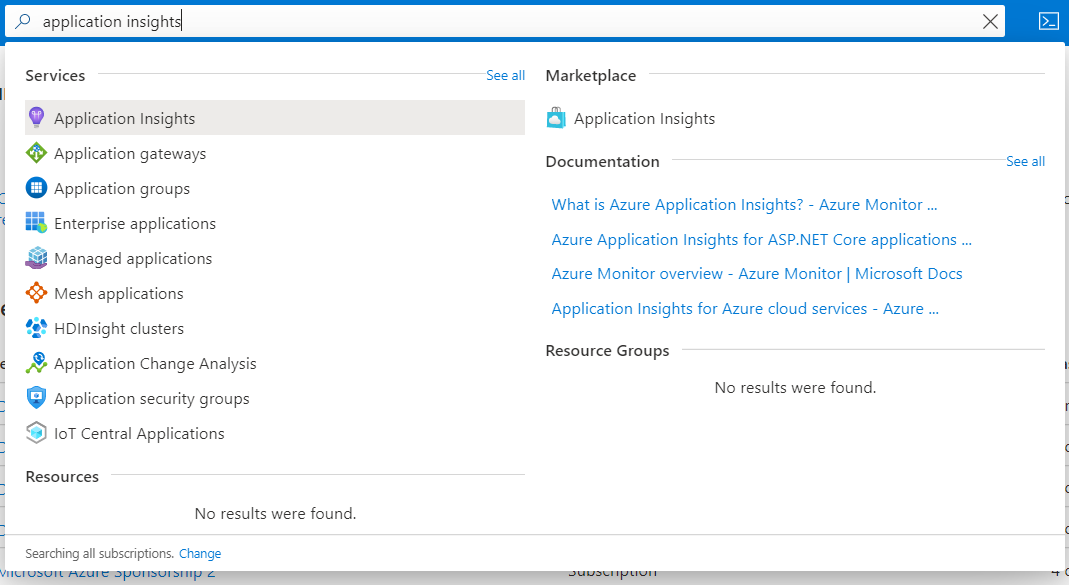
Use the search bar to look for application insights and select it.
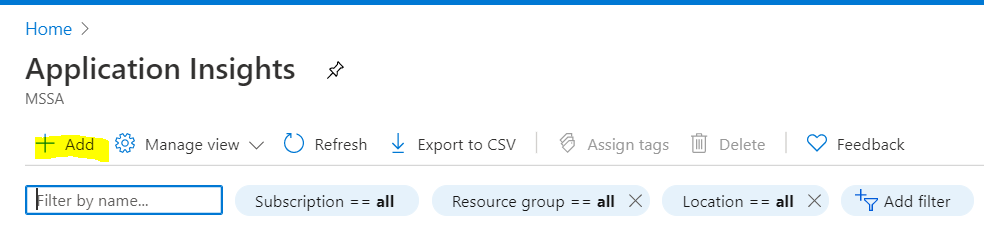
Click to add a new application insight.
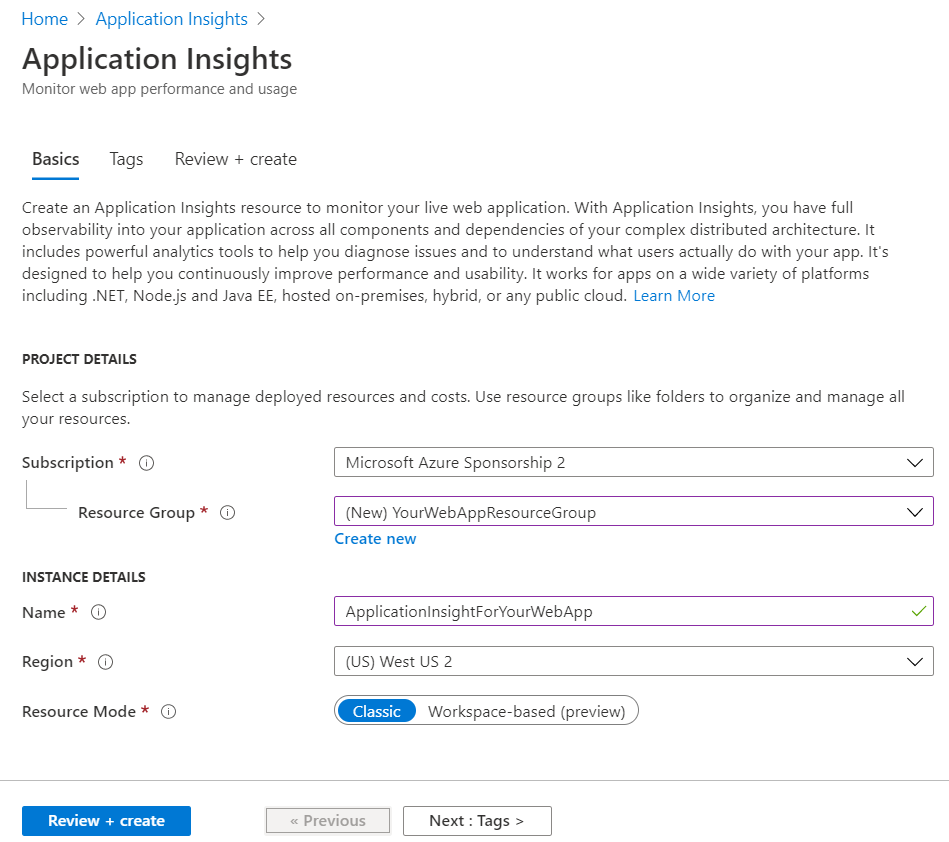
Make sure to create this resource in the same resource group as your web app and give it a relevant name such as, “YourWebApp-AppInsights” or something similar. Then click review + create.
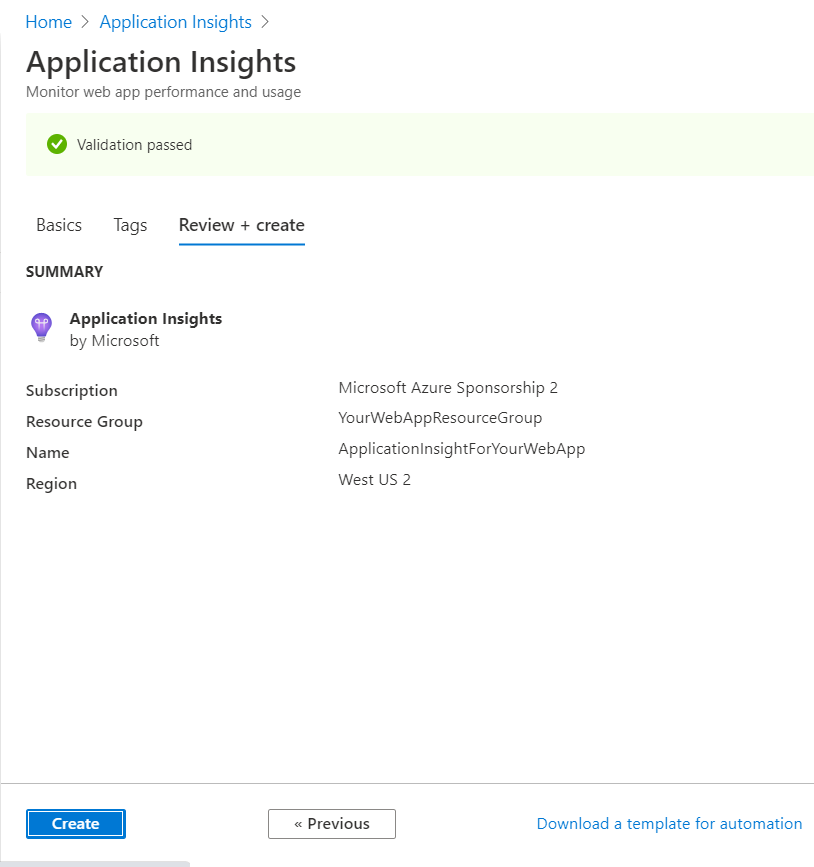
Then click create to create your new application insight.
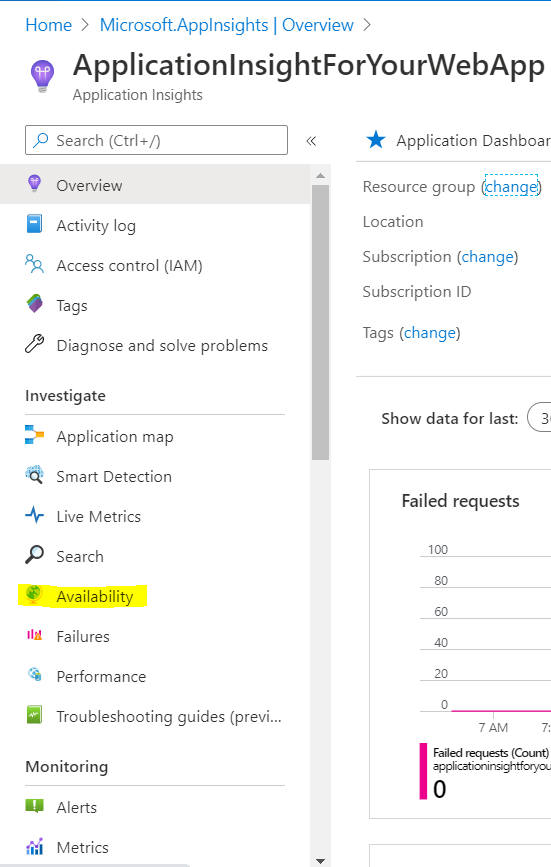
Once your resource has been successfully created go to the “availability” option in the blade.
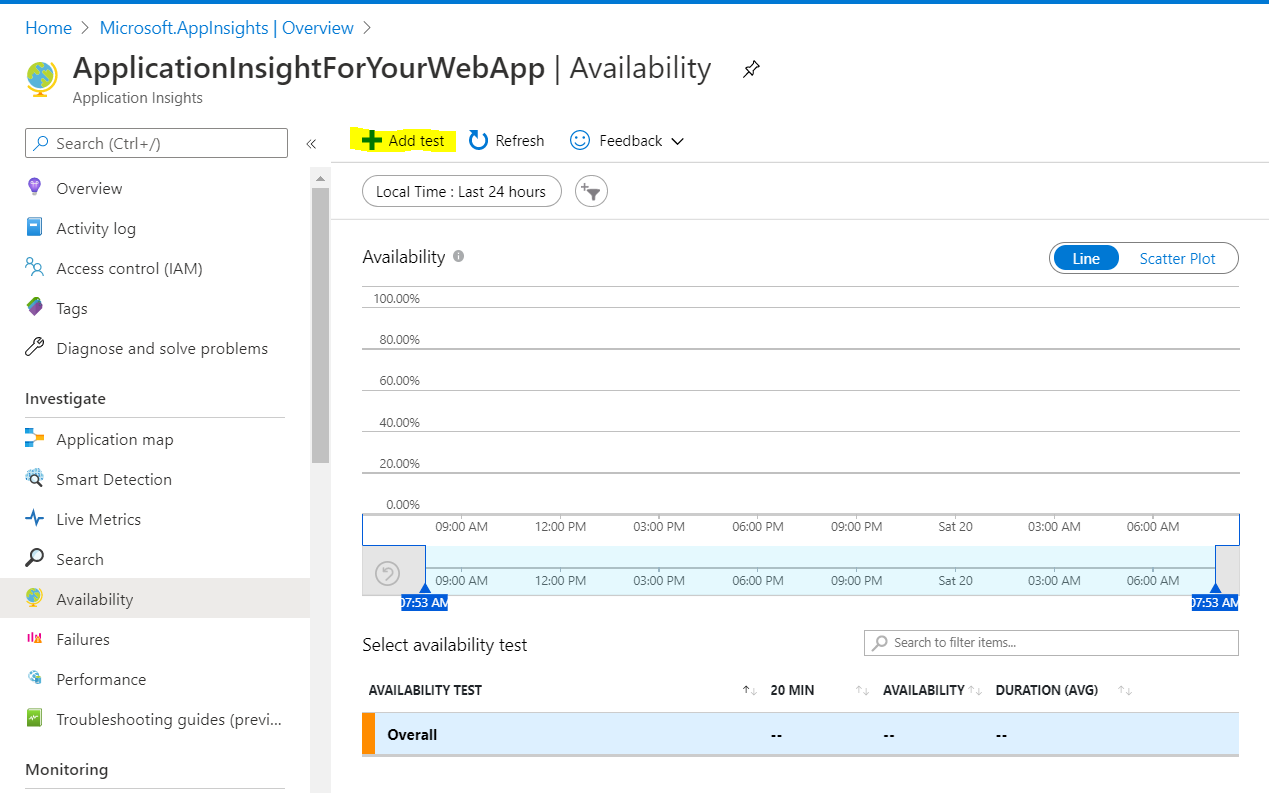
Click to add test.
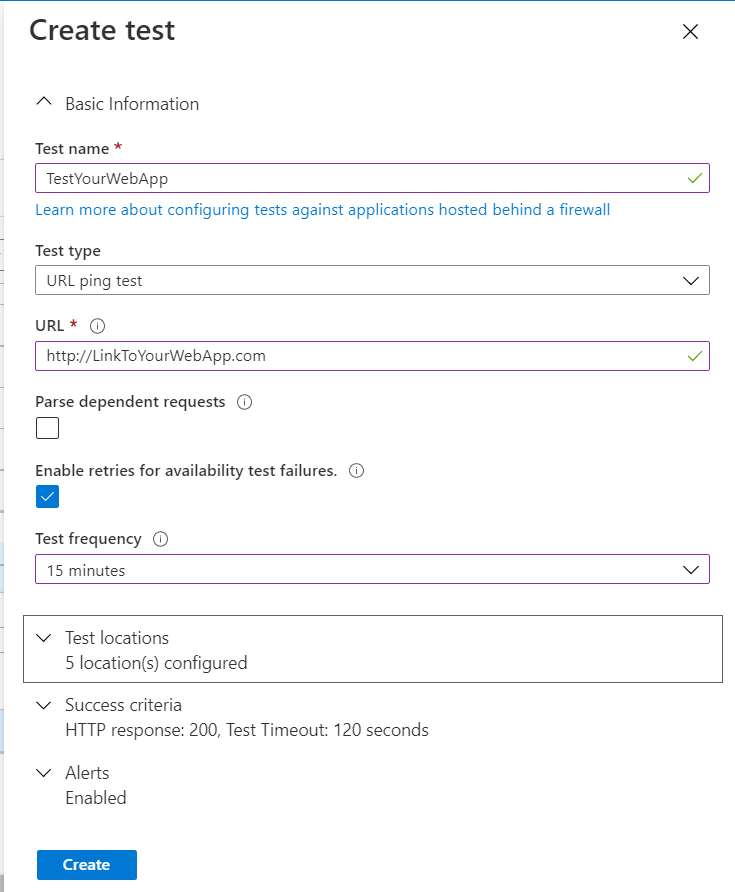
Assign a relevant name for your test, ensure your test type is set to URL ping test, and put a link to your web app in the URL field. Change test frequency to 15 minutes. The defaults for the other options should be fine, but check Test Locations and ensure that it makes sense for where your users will be located. Once all that’s entered select create.
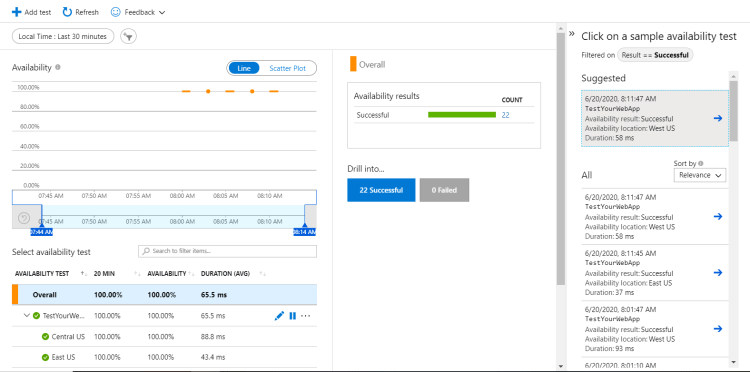
Once the test is created, Azure will take you back to the dashboard view of availability. Here’s where you’ll get the output of all the URL ping tests. I used google as my URL to ping, to ensure success, but you’ll get similar looking results from your web app.
And that’s it! It’s a fairly quick process to get this URL ping test going, ensuring that your web app stays active. In addition, application insights can provide a lot of valuable feedback for your web app such as revealing locations where users get frustrated and how long their requests are taking. Since using this solution on my personal web app https://chronoclashdecks.azurewebsites.net/ , I haven’t had any exorbitant load times on the home page even when I haven’t visited in several days. I also haven’t noticed any sort of significant change to my Azure credits expenditure, although I am using Azure education credits, so I can’t see the exact breakdown (always use due diligence and check your cost expenditures to keep an eye out for anything unexpected).
I hope this information helps your app stay available and keeps your user base engaged and entertained. Thanks for reading!

 Happy Snail Programming
One thought on “Keeping Azure Web Apps Active: A Method to Avoid the Abyss”